STEP 7
📥 Exporting opportunities
DOWNLOAD THE OPPORTUNITIES YOU'VE CONFIRMED (OR EVERYTHING MATCHING YOUR FILTER) AS A CSV WITH URLS, ANCHOR TEXT, SURROUNDING SENTENCE, AND ERROR TYPE.
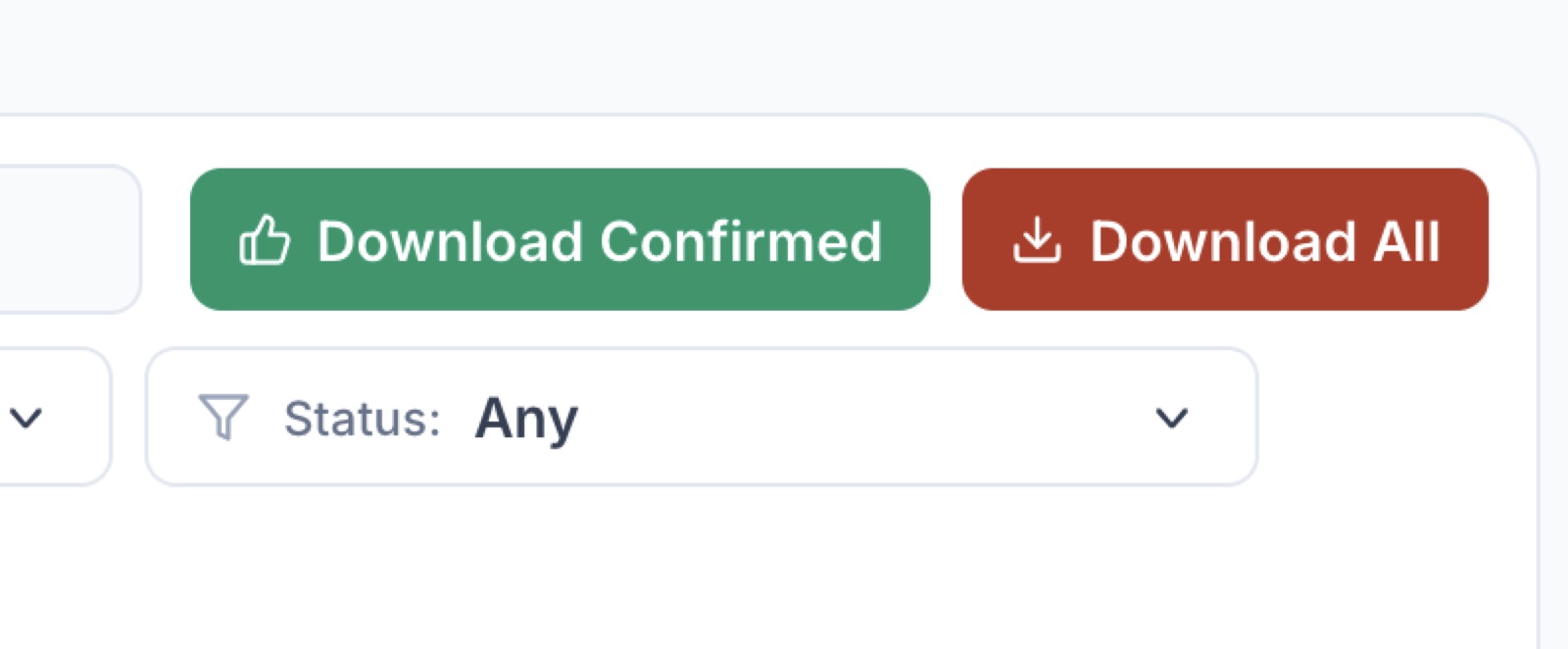
The Opportunities table is great for browsing, but most teams want the structured data somewhere they can paste, sort, hand off, or load into another system. Two buttons sit at the top of the table for exactly that.
- 🟢 Download Confirmed 👉 exports only rows you’ve thumbs-upped. This is your reviewed shortlist, ready to go.
- 🔴 Download All 👉 exports every row that matches your current filter (not the whole database). Use this for bulk analysis or when you want to triage in a spreadsheet.
Both produce a CSV with every column from the table, plus the underlying URLs, anchor text, and surrounding sentence so you have full context for each opportunity.
Once you’ve got the file, the next step is yours. We don’t run outreach, send messages, or otherwise act on these for you. The CSV is yours to load into whatever workflow you already trust.
Tips 💡
- 🎯 Apply your filters first, then click Download All. The export respects whatever you have on screen.
- 🗂️ Download Confirmed is the safer default if you only want rows you’ve personally vetted.
- 🔁 Re-export any time. Confirmed rows accumulate as you keep rating.
- 📊 Open in any spreadsheet (Sheets, Excel, Numbers). UTF-8, comma-separated, one row per opportunity.